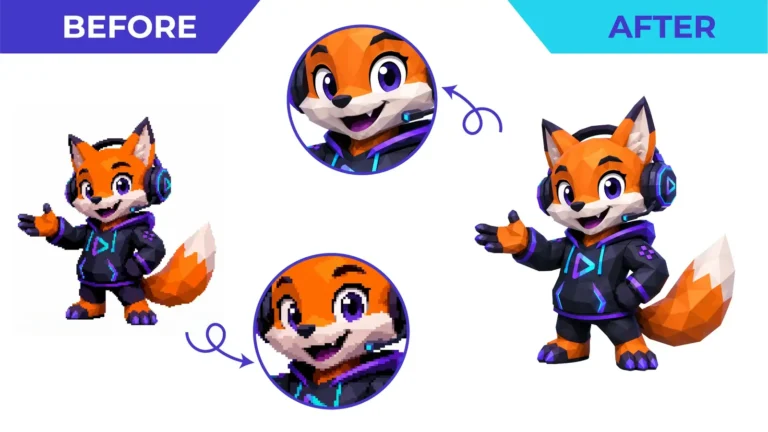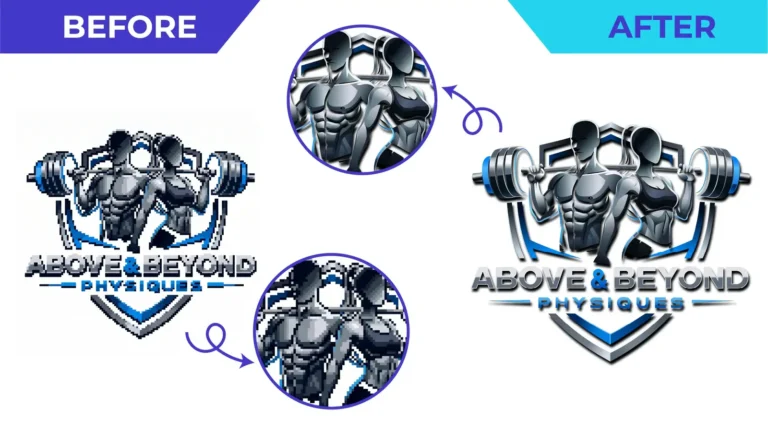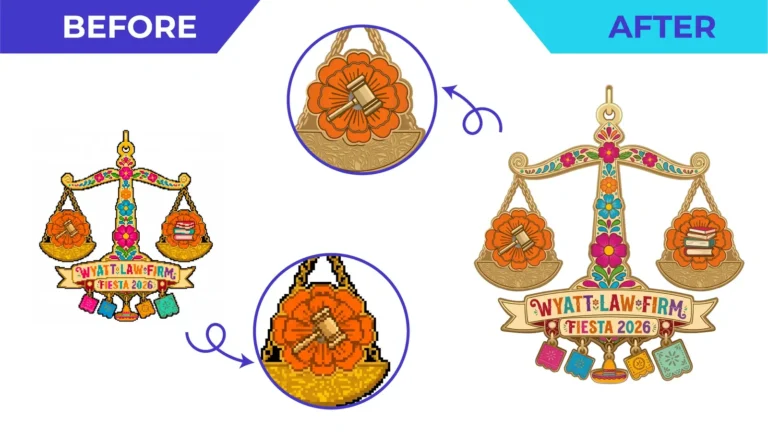
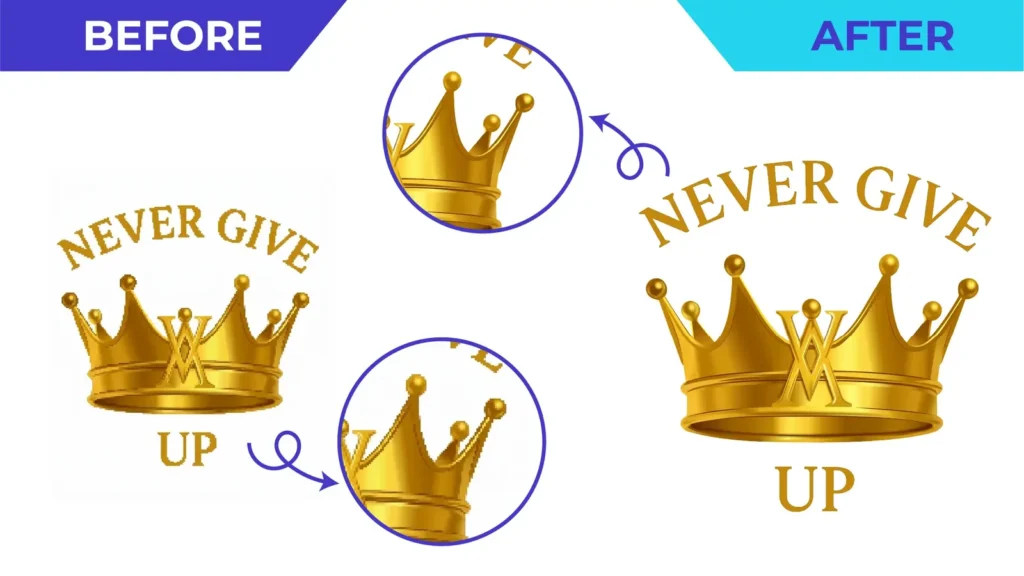
Short answer: zoom in a long way. If the edges stay perfectly sharp at any zoom level, the artwork is vector. If they turn into little squares, it is a pixel (raster) image, even if the file is called logo.eps or logo.pdf.
Why the file extension isn’t enough
AI, EPS, PDF and SVG are formats that can hold vector artwork. They can also hold an embedded JPG or PNG. This happens all the time: someone places a logo image into Illustrator and saves it as EPS, or exports a JPG as PDF. The file looks professional, but inside it is still the same pixels, with the same blur. Printers notice this immediately, and that’s why they ask for “a proper vector file”.
Check 1: the zoom test
Open the file in any PDF viewer, Illustrator, Inkscape or a browser (for SVG) and zoom in to 800% or more on a curved edge or small letter.
- Vector: edges stay razor sharp no matter how far you zoom.
- Raster: edges become stepped squares, soft or fuzzy.
This is the quickest and most reliable check most people can do.
Check 2: outline or wireframe view
In Illustrator, choose View > Outline (in Inkscape, View > Display mode > Outline). Vector shapes appear as thin outlines. An embedded image appears as a single rectangle with a cross through it, or nothing recognisable at all.
Check 3: try to select a single shape
Click on one letter or one part of the logo. In a vector file you can usually select individual shapes and see anchor points along their edges. If the whole logo selects as one rectangle labelled “Image” or “Linked file”, it is raster.
Check 4: look for suspiciously large or tiny files
This is not proof on its own, but it’s a useful hint. A simple logo saved as a vector PDF or SVG is usually small. A file of several megabytes for a simple logo often means an embedded image. A huge SVG with thousands of points often means an automatic trace (see why auto-traced logos look messy).
What if it is vector, but messy?
Some files pass the zoom test but still cause problems: thousands of anchor points from auto-tracing, overlapping duplicate shapes, open paths or missing fonts. These may print but fail on a vinyl cutter or laser. That is a job for vector file cleanup, or a full redraw if the trace is poor.
What if it’s a raster image?
Then it needs to be redrawn as vector. Re-saving won’t help. “Save as EPS” or “Export to PDF” keeps the pixels exactly as they are. A manual redraw uses the image as a reference and rebuilds every shape cleanly. Depending on what you have, see:
- JPG to vector for compressed images and photos of logos
- PNG to vector for transparent web graphics
- Logo redraw for blurry, old or damaged logos
A quick checklist before sending artwork
- Zoom test passed: edges stay sharp
- Text converted to outlines, or fonts supplied
- Colours specified (CMYK, Pantone or HEX, as your supplier needs)
- Correct format for the job. Our vector file formats guide explains which one.
- Printer’s specific requirements checked
If any of these fail, or you’re not sure, upload the file. We’ll tell you what it contains and what it needs.
Need This Done Properly?
Upload your artwork, tell us how it will be used, and get a free, no-obligation quote.